
How to install Furt9gkup depends on one thing you must check first: where the file comes from. Search results in November 2026 showed no official website, app store listing, or developer page for Furt9gkup. That means no verified installer exists that I can point you to.
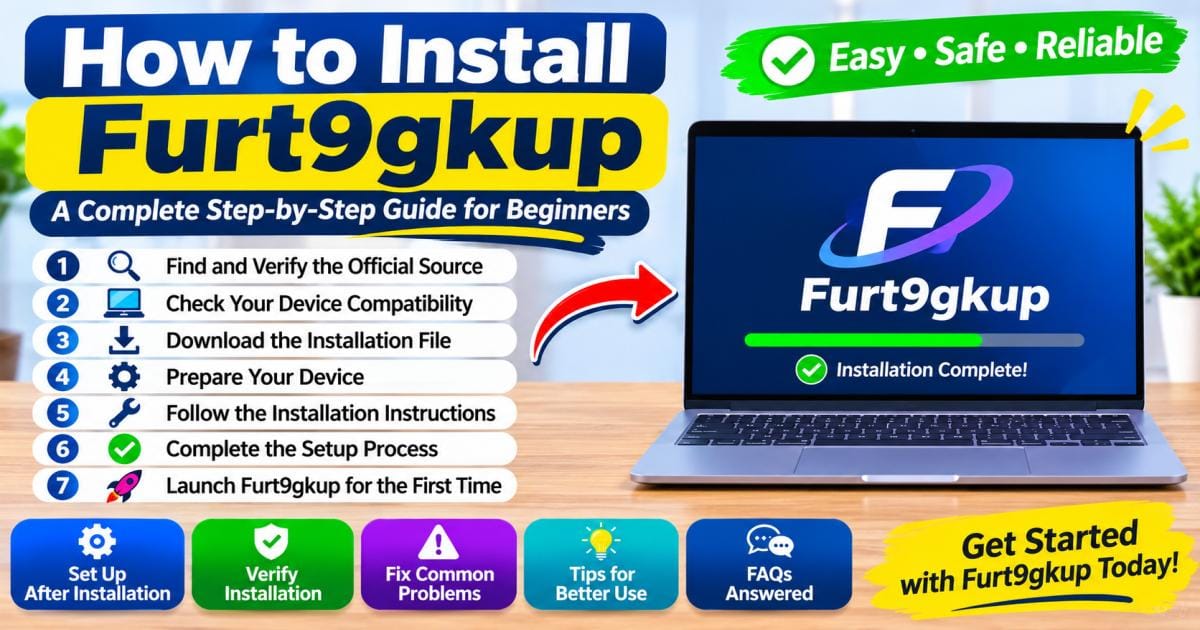
If you already have a download, the safe route has seven steps: verify the source, check device compatibility, download only from that source, prepare your device, run the installer, finish setup, and watch the first launch. If you have no verified source, don’t install anything yet.
This guide is for beginners, including readers in Egypt and elsewhere who found the name on a forum, in a video description, or on a search page. One idea runs through every section: the source matters more than the steps. Perfect steps can’t make an unsafe file safe.
What is Furt9gkup and How Does It Work?
No verified source explains what Furt9gkup is. The name appears on a few web pages, and they don’t agree with each other. One describes it as a tool for card programs and approval workflows. Another calls it a framework that runs files inside an isolated container. Both pages sit on education-related web addresses, an odd home for a software launch, and neither links to a developer or a download.
So what does Furt9gkup do? Nobody can say with confidence. Any explanation of how it works would be a guess, because its behavior depends on who built it and what the file contains. That is why this guide starts with the source, not the setup.
Names made of random letters and numbers also deserve a second look. They typically appear on pages built to attract search traffic, and sometimes on files that carry unwanted software. That isn’t proof of harm. It is a reason to slow down.
What to Know Before Installing Furt9gkup
Treat Furt9gkup as unverified software until a trustworthy source proves otherwise. Unverified doesn’t mean harmful. It means you shouldn’t give it the access you would give an app from a developer you know.
Have these ready before you start:
- The exact link or file you plan to use, and where you found it
- Your operating system version and free storage space
- Administrator access on Windows or Mac, so you can undo changes
- A recent backup of your important files
- Antivirus or built-in protection switched on
Then ask one question: how did I find this file? Fake installers often spread through search ads, messaging groups, and file-sharing links. If your answer is an ad, a pop-up, or a message from a stranger, stop there.
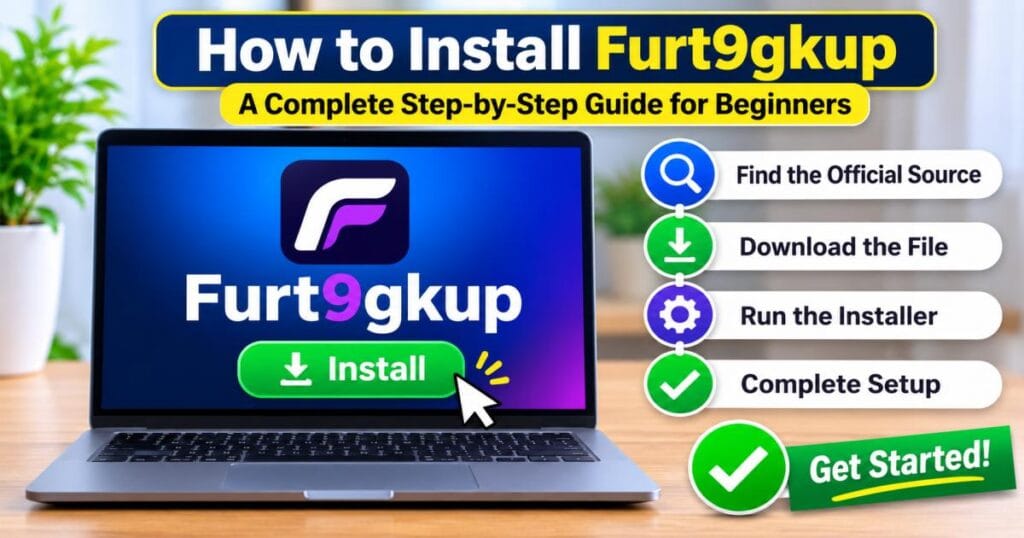
How to Install Furt9gkup: Step-by-Step Guide
Follow the seven steps in order. A failed check is useful information, so don’t skip ahead.
Step 1: Find and Verify the Official Furt9gkup Source
Where can you download Furt9gkup? Only from the page run by the people who made it. A real official source shows a named developer or company, a working contact address, a privacy policy, and a download link on the same site. Trusted places include the Microsoft Store, Google Play, the Apple App Store, and the release page of a public code repository with a visible history.
A tutorial that repeats the name without linking to any of these is not a source. Neither is a forum comment saying it works.
If you can’t find a real developer behind Furt9gkup, the safest choice is not to install it. This is the step where the source matters more than the steps.
Step 2: Check Your Device Compatibility
Software built for one system often fails on another. On Windows, open Settings, select System, then About, and note your Windows version and whether it is 64-bit or 32-bit. On Android, open Settings, then About phone, and check the Android version. On a Mac, click the Apple menu and choose About This Mac.
Compare those details with the requirements on the official page. Check your free storage too, because a full drive is a common reason an installation stops halfway.
Step 3: Download the Appropriate Installation File
Download straight from the verified page. Never use a mirror, a file-sharing link, or a download manager that wraps the file.
The file type should match your device: usually .exe or .msi on Windows, .dmg on a Mac, and a store listing on Android. Watch for double extensions. Windows hides known file extensions by default, so a file named invoice.pdf.exe appears as invoice.pdf on a standard setup.
If the developer publishes a checksum, compare it with your file. On Windows, open PowerShell and run Get-FileHash followed by the file path. A different result means a damaged or altered file, so delete it and download again.
Step 4: Prepare Your Device for Installation
Close other programs, update your operating system, and back up your files. Then scan the installer. On Windows, right-click it and choose Scan with Microsoft Defender. For a second opinion, upload it to VirusTotal, a free service that checks files against dozens of antivirus engines.
Don’t switch off your antivirus to get an installer to run. If protection software blocks the file, treat that as a warning. On Android, you may need to allow installs from outside the Play Store. That permission applies to the one app you open the file with, so turn it off again afterward.
Step 5: Follow the Installation Instructions
On Windows, double-click the installer and read each screen before you click Next. If Windows shows an Unknown publisher message, pause and go back to Step 1. Untick extra offers such as toolbars or bundled apps, and keep the default install location unless you have a reason to change it.
On Android, tap Install on the store page. On a Mac, open the .dmg file and drag the app into the Applications folder. If macOS says it can’t verify the developer, don’t force it open until you have confirmed the source.
Step 6: Complete the Setup Process
Let setup finish without interruption, and restart your device if it asks. Skip optional extras you don’t need. Don’t enter bank details, card numbers, or important passwords unless the software belongs to a verified service that needs them.
When a permission request appears, ask whether the app really needs it. A text tool has no need for your contacts, and a file tool has no need for your microphone.
Step 7: Launch Furt9gkup for the First Time
Open it from the Start menu, the Applications folder, or your Android app drawer. Watch how it behaves for the first few minutes. Warning signs include sudden pop-ups, requests for extra permissions, a slow device, or a window that closes and reopens by itself. If you see any of these, close the app and uninstall it at once.
How to Set Up Furt9gkup After Installation
Once it opens normally, spend a few minutes on the basics. Open the settings menu, review the privacy options, and turn off anything that shares data you would rather keep private. Check the permissions it holds and remove the ones it doesn’t need.
If it asks you to create an account, use a unique password you haven’t used anywhere else. Turn on automatic updates only if they come from the developer’s own channel. For daily work, use a standard user account instead of an administrator account whenever you can.
How to Verify That Furt9gkup Is Installed Successfully
How do you know the installation worked? A program that opens isn’t automatically installed correctly. On Windows, go to Settings, then Apps, then Installed apps, and look for Furt9gkup with a publisher name and a version number. On Android, open Settings, then Apps. On a Mac, check the Applications folder.
Next, open the app and look for an About or Version screen. Real software almost always has one. Then run a full scan with your security software. Check Task Manager on Windows or Activity Monitor on a Mac to confirm the running process has the name you expect and doesn’t use unusual amounts of memory or processor power.
Common Furt9gkup Installation Problems and How to Fix Them
Why is Furt9gkup not installing? The cause usually falls into one of four groups.
If the installer won’t open, a damaged download or a security block is typical. Download the file again from the verified page, check the checksum if one is published, and don’t bypass a warning unless you have confirmed the publisher.
If you see a message that the app isn’t compatible with your device, you probably have the wrong version for your system. Check whether your system is 64-bit or 32-bit, and update your operating system if it is out of date.
If the installation stops partway or shows an error code, free up storage, restart your device, close other programs, and try again. Antivirus software can interrupt an install, but the right fix is to confirm the file is safe, not to switch protection off.
If the app installs but won’t launch, a restart often fixes it. If not, uninstall it, install your system updates, and reinstall from the same verified source. On Android, an App not installed message typically means an older copy is still present or your Android version is too old. Remove the old copy and recheck the requirements.
Is Furt9gkup Safe to Download and Install?
Is Furt9gkup legit or safe? That can’t be confirmed. With no identifiable developer, no official download page, and no consistent description, there is nothing to check the file against. That differs from software that is merely new or small.
Signs of a safer download include a named company, a secure website with contact details, a clear privacy policy, a changelog, and a listing in a trusted store. Signs of risk include forced redirects, countdown timers, payment requests to unlock a free download, and installers that ask you to disable security software.
Even a flawless installation doesn’t make an unverified file safe. The source matters more than the steps.
If you already installed something under this name and feel worried, uninstall it and run a full scan. Then change the passwords of any accounts you used on that device, starting with email and banking. Use a different, clean device if you can. Finally, check your account activity for anything you don’t recognize.
Tips for Using Furt9gkup Effectively
If you have verified your source and installed it, a few habits keep it reliable. Test it with non-sensitive files first. Keep a copy of the installer and its version number, so you can reinstall the same build if something breaks. Read the changelog before updating, and update only through the developer’s own channel.
Bookmark the official support page too. If something goes wrong, the real developer can help faster than a forum thread. And review permissions again after every major update, since they sometimes change.
Final Thoughts
The honest answer to how to install Furt9gkup is that the source matters more than the steps. Without a verified developer or official download page, no safe installer exists to recommend, and no one can say for sure what the software does.
If you have confirmed a source, follow the seven steps in order, scan the file, and watch how the app behaves after launch. If you can’t confirm one, close the tab and look for a documented alternative that does the same job. A few minutes of checking costs far less than cleaning up a compromised device.
FAQs
What Is Furt9gkup?
No verified source explains it. The name appears on a few web pages that describe it in different, unrelated ways, with no named developer or documentation. Treat it as unverified until an official source appears.
How to Install Furt9gkup on a Device?
Verify the official source, check compatibility, download only from that source, scan the file, run the installer, finish setup, and watch the first launch. Steps 1 to 7 above cover each stage.
Is Furt9gkup Free to Download?
Unknown. My search results showed no official pricing. Be careful with any page that asks for a fee, a survey, or a card number before the download.
Is Furt9gkup Available for Windows?
No verified Windows version turned up. If a page claims to offer one, apply Steps 1 to 4 first and confirm the page belongs to the real developer.
Can I Install Furt9gkup on Android?
No search result pointed to a Google Play listing. Installing an APK from an unknown site carries more risk than installing from the Play Store, so consider it only after you verify the source.
Why Is Furt9gkup Not Installing?
Common causes are a damaged download, low storage, an incompatible system version, or a security tool blocking the file. Re-download from the verified source, free up space, restart, and check compatibility. Take any security warning seriously.
How Can I Uninstall Furt9gkup?
On Windows, go to Settings, Apps, Installed apps, select it, and choose Uninstall. On Android, open Settings, Apps, tap it, and choose Uninstall. On a Mac, drag it from the Applications folder to the Trash. Then run a full scan and delete any leftover folders you find.